Vat Inventory Module's manual
Inventory Add
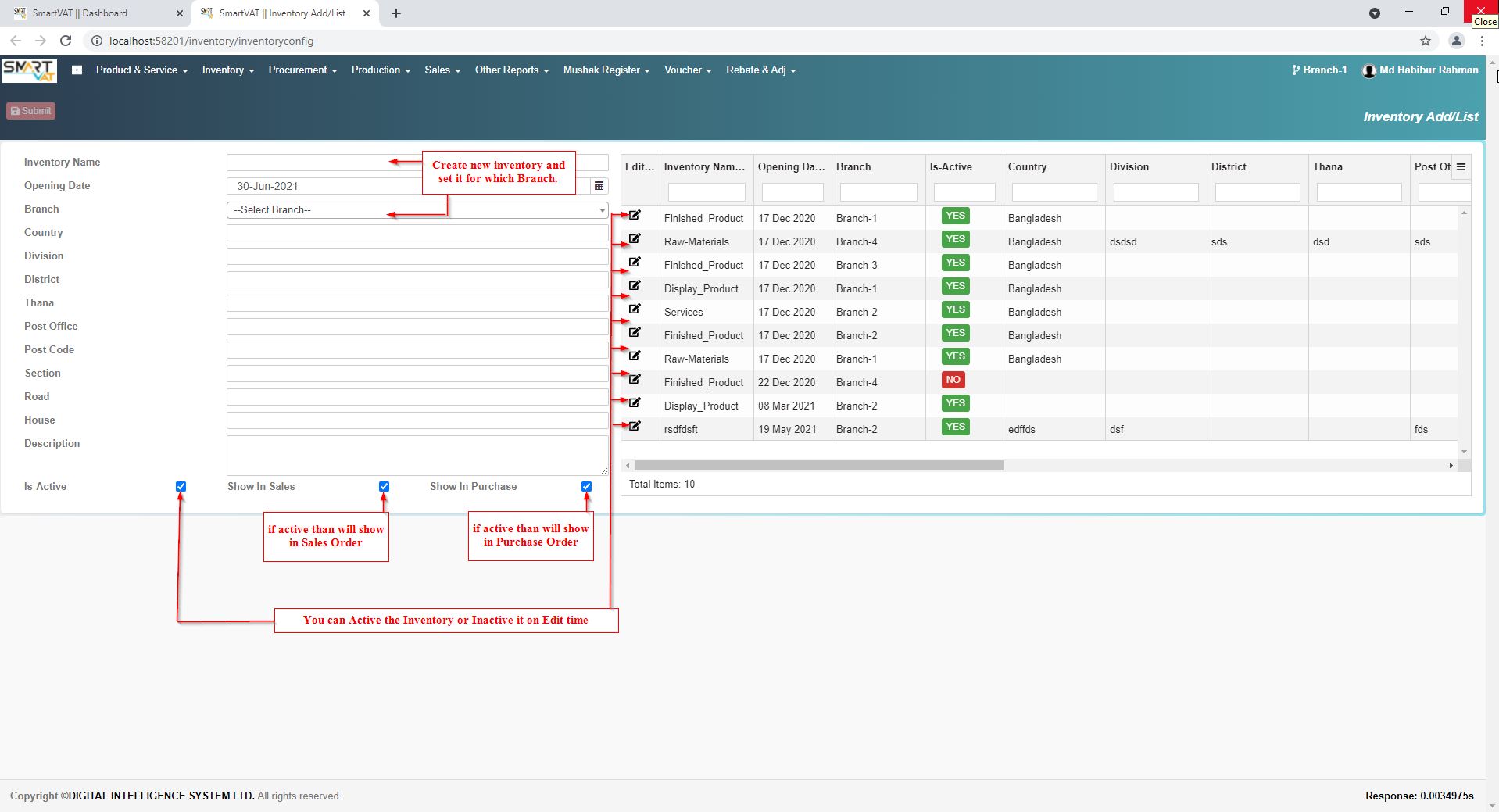
For Create the new Inventory, here you go -Vat Management>Inventory > Inventory Entry
Inventory is for stocking product .there may have many inventory in one Branch .So inventory should be created by Branch wise.
- Inventory Name - Enter here Inventory Name, which may similar to another branch's inventory name(Conventional name).
- Branch - Select branch name. This inventory will be set for only this branch.
- Is-Active - if you active this than this branch's inventory will be available else it will nowhere.
- Show In Sales - By Checked this ,this inventory will show in Local Á Foreign Sales Order Page.
- Show In Purchase - By Checked this ,this inventory will show in Local Á Foreign Purchase Order Page.
- Enter others fields and you may edit from this page.
Stock In
Stock In
For storing the product in inventory, here you go -Vat Management>Inventory > Stock In
Here Items are stocking in branchwise inventory.
- Vendor - Enter the supplier name by whom the item is purchasing.
- Inventory - in which Inventory receiving the items.
- BIN/NID - Supplier BIN or NID number will set by default.
- Total Qty - total stocking items quantity.
- Stock Date - in which date items may Storing in inventory.
- Total Amount - the total price of items.
- Remarks - you may write important notes.
Damage Product
Damage Product Entry
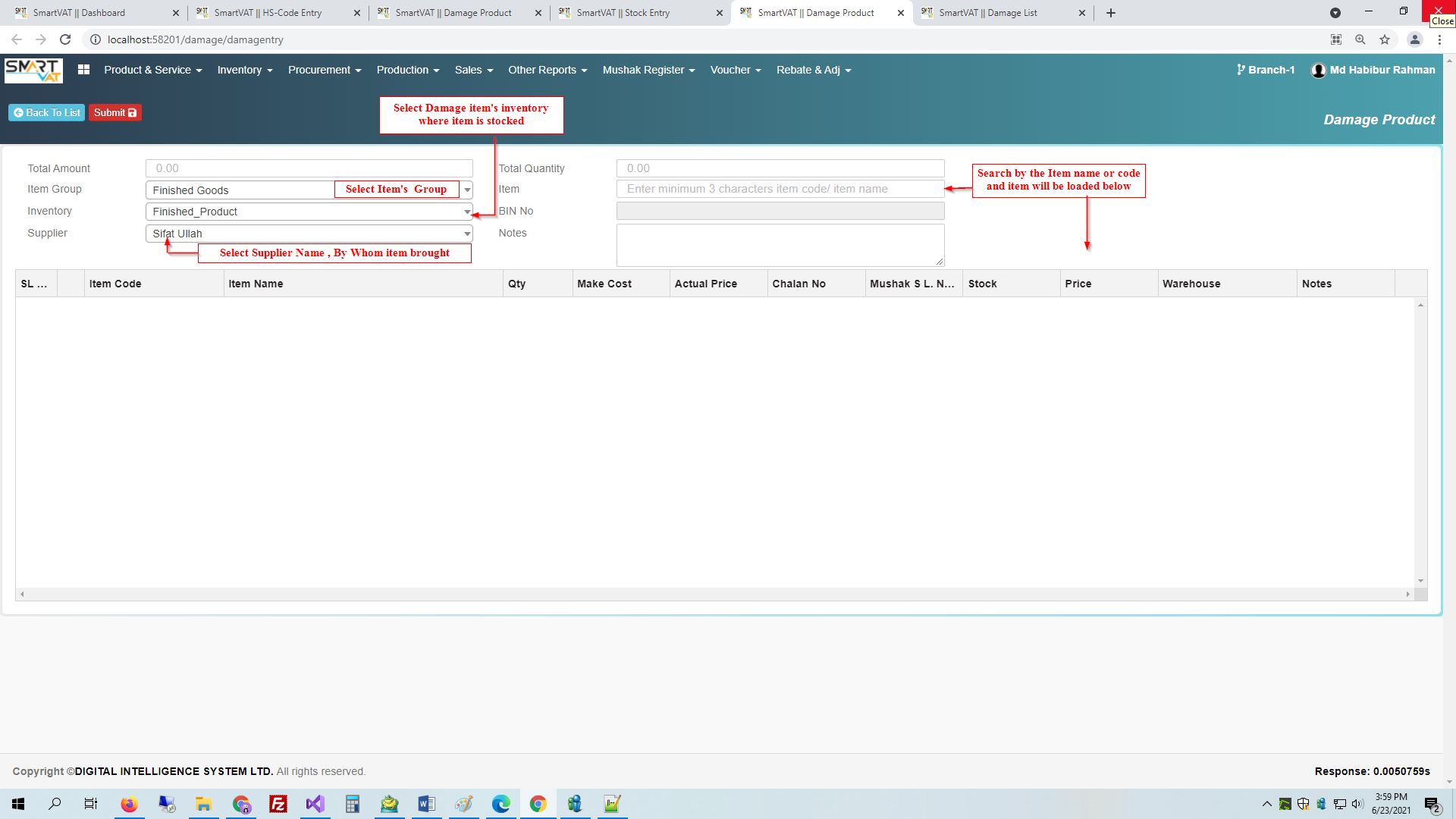
For adding damaged product in inventory, here you go -Vat Management>Inventory > Disposal Add
Some Items may be damaged.From here you may entry those Damage products.
- Total Amount - here total amount of damaged product will be set
- Item Group - Select Item Item Group
- Inventory - Select Damage item's inventory where item was stocked.
- Supplier - Select item supplier name
- Total Quantity - enter total quantity
- Item - Select Item which became damage
- BIN No - By default BIN/NID will be set after selecting Supplier
- Notes - you may write important notes.
Disposal Bill Confirmation
Damage Confirm
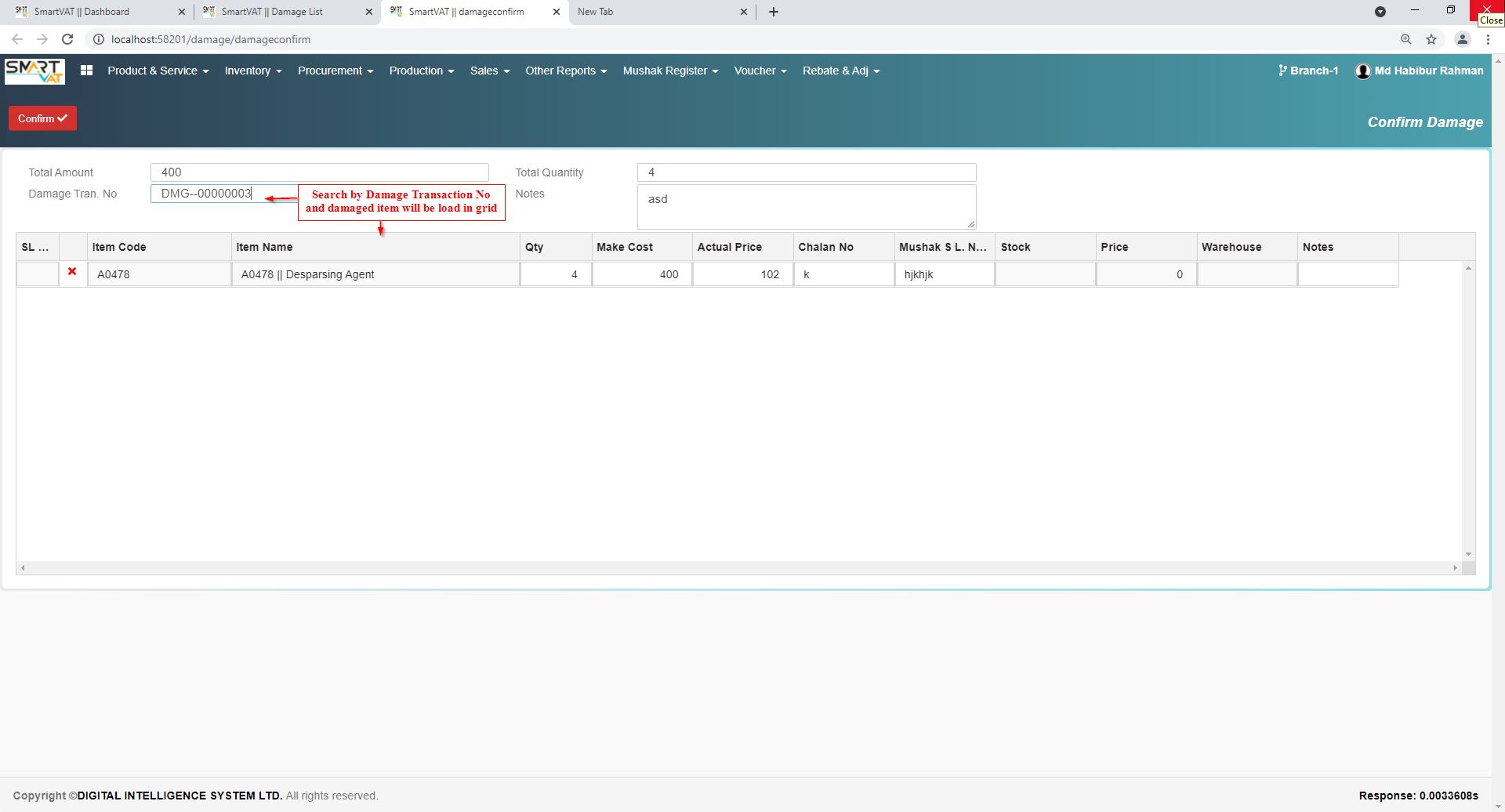
For confirm damaged product, here you go -Vat Management>Inventory > Disposal Bill Confirmation
After 'Disposal Add' you can confirm those products from here.
- Damage Tran. No - enter or search Damage Transaction no (conventional prefix DMG-) and all the fields will be filled.
Raw Meterial Consumption
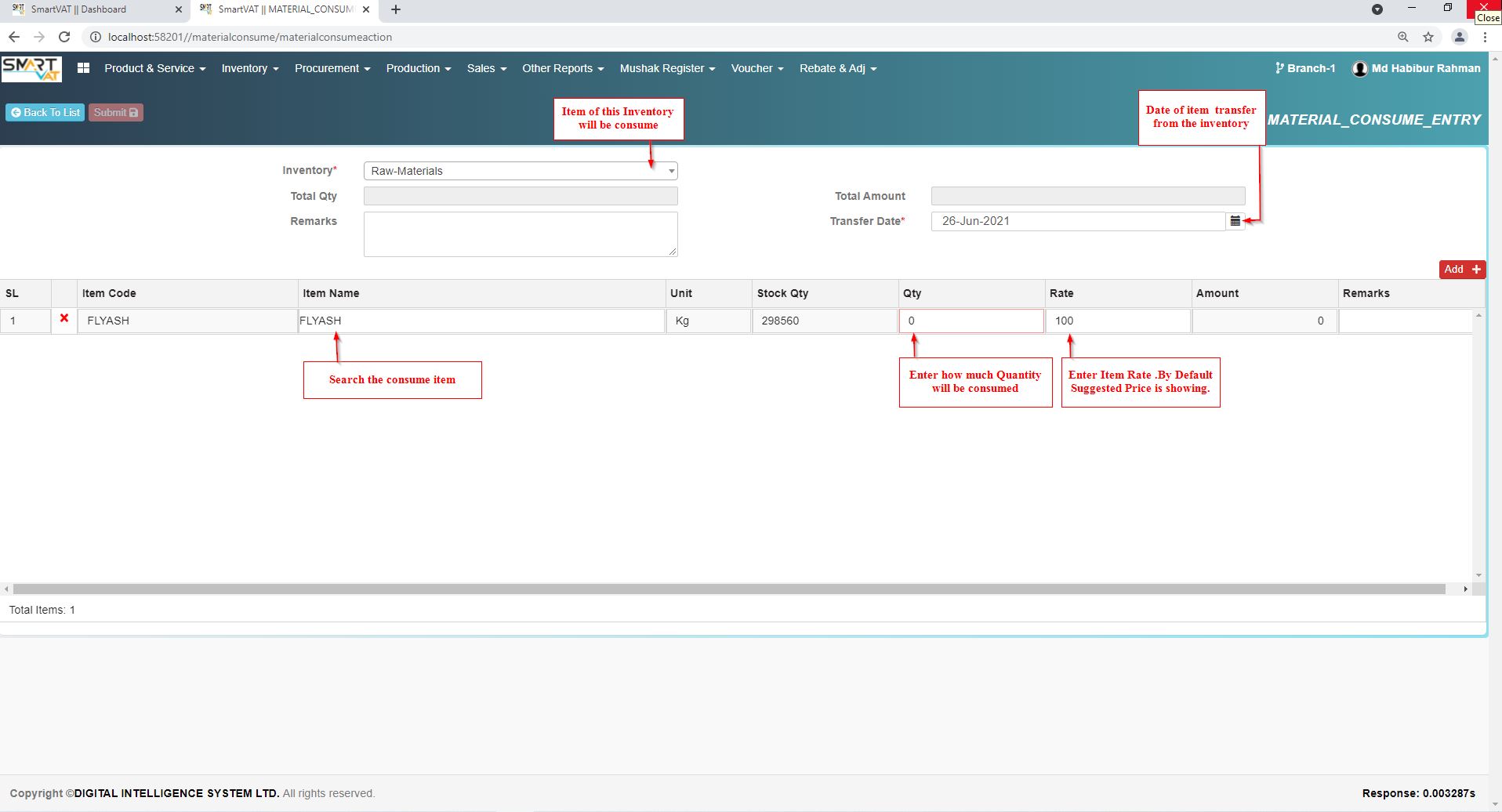
MATERIAL CONSUME ENTRY
For product consume, here you go -Vat Management>Inventory > Raw Meterial Consumption
- Inventory - select Inventory then search Item Name in grid
Transfer Order
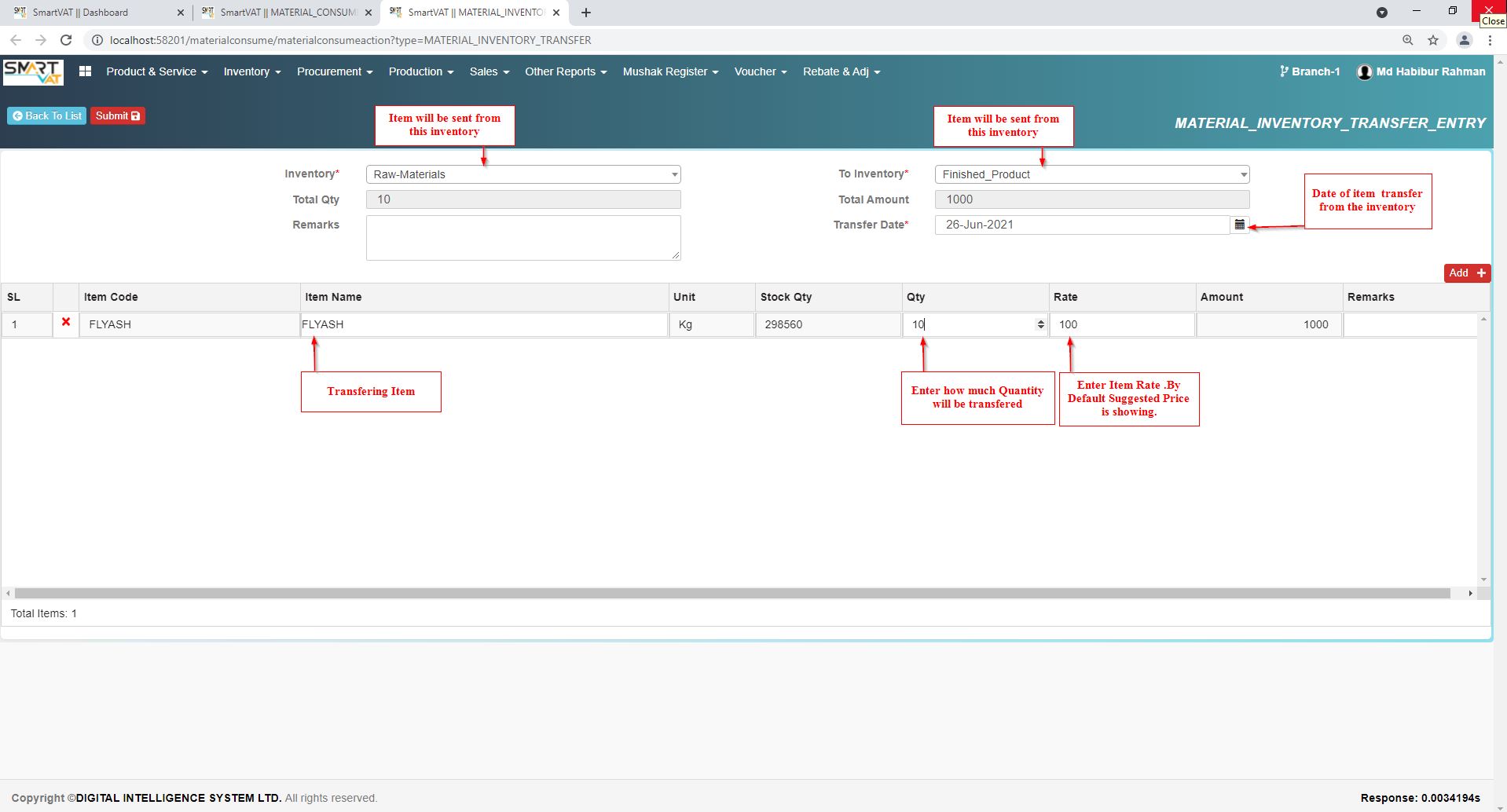
MATERIAL INVENTORY TRANSFER ENTRY
For item transfer, here you go -Vat Management>Inventory > Transfer Order
DO for Contructual Production
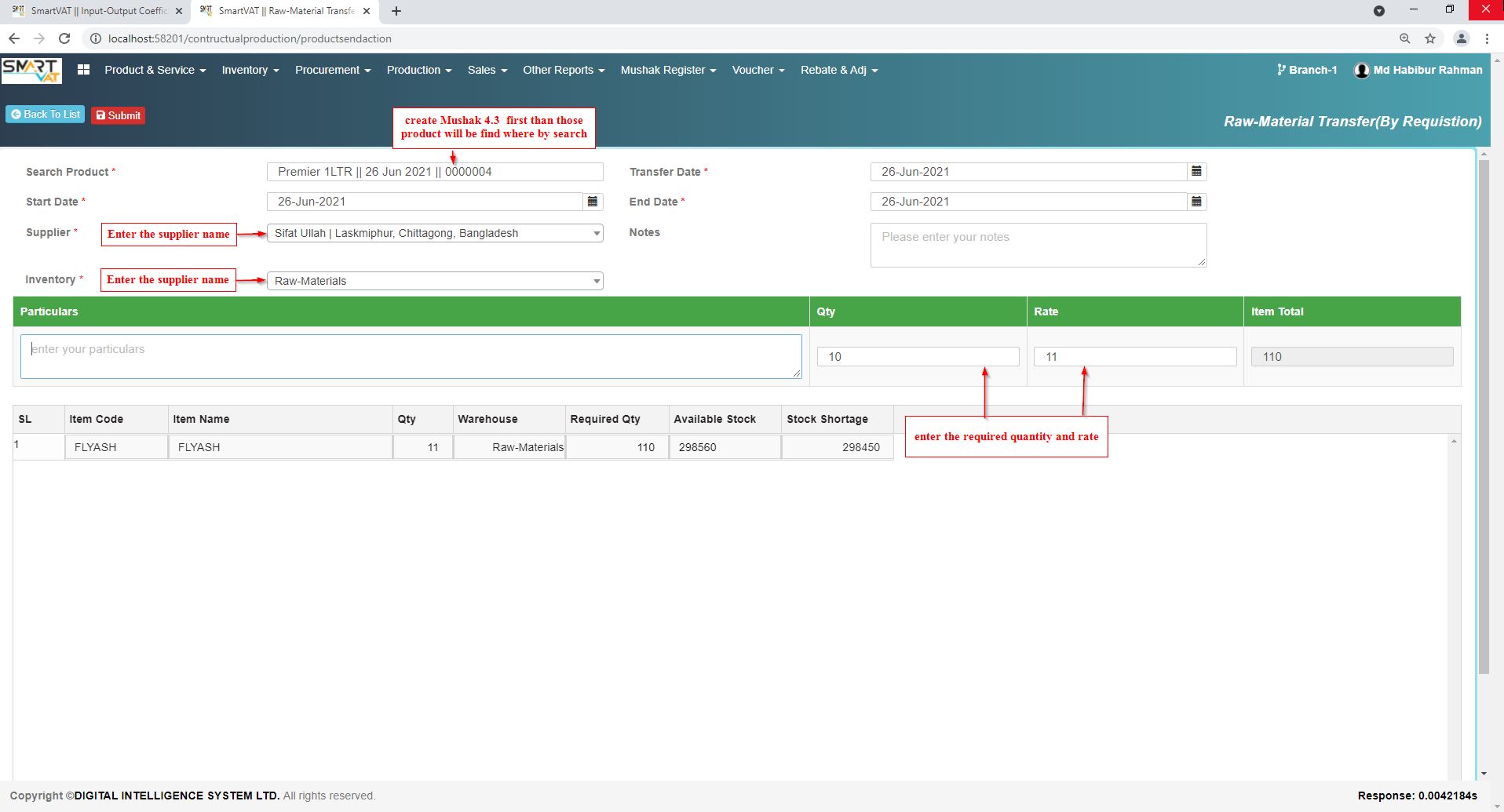
Raw-Material Transfer(By Requistion)
here you go -Vat Management>Inventory >DO for Contructual Production> Add New
DI for Contructual Production
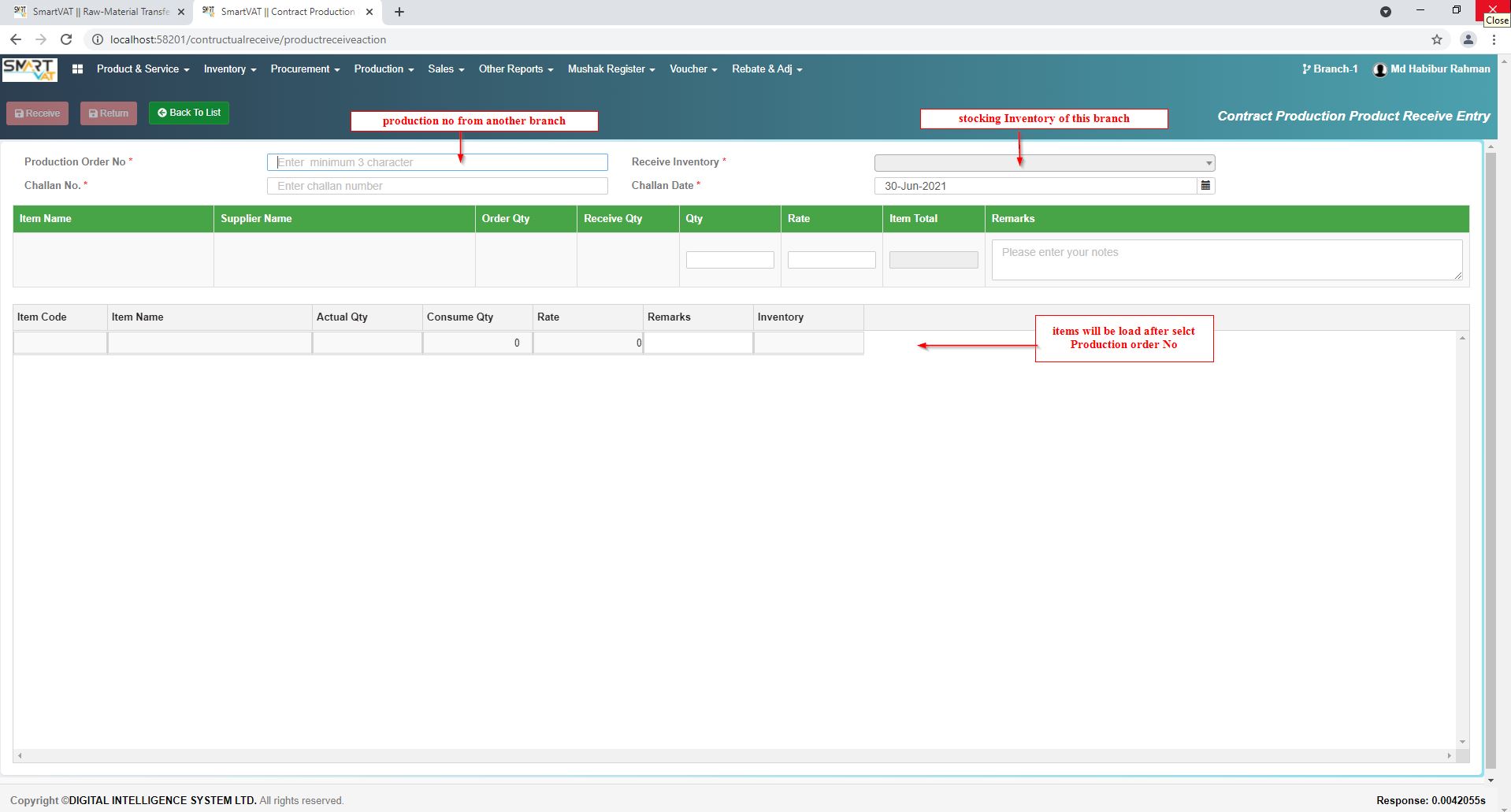
Contract Production Product Receive Entry
here you go -Vat Management>Inventory >DI for Contructual Production> Add New